PRODUCT GUIDE
Execution history
Understand an agent’s executions across all its versions without changing conversations.
Before you start
- Access to the agent’s workspace; read-only consultation is supported.
- An agent that has already handled a conversation to see a non-empty history.
Steps
Open history
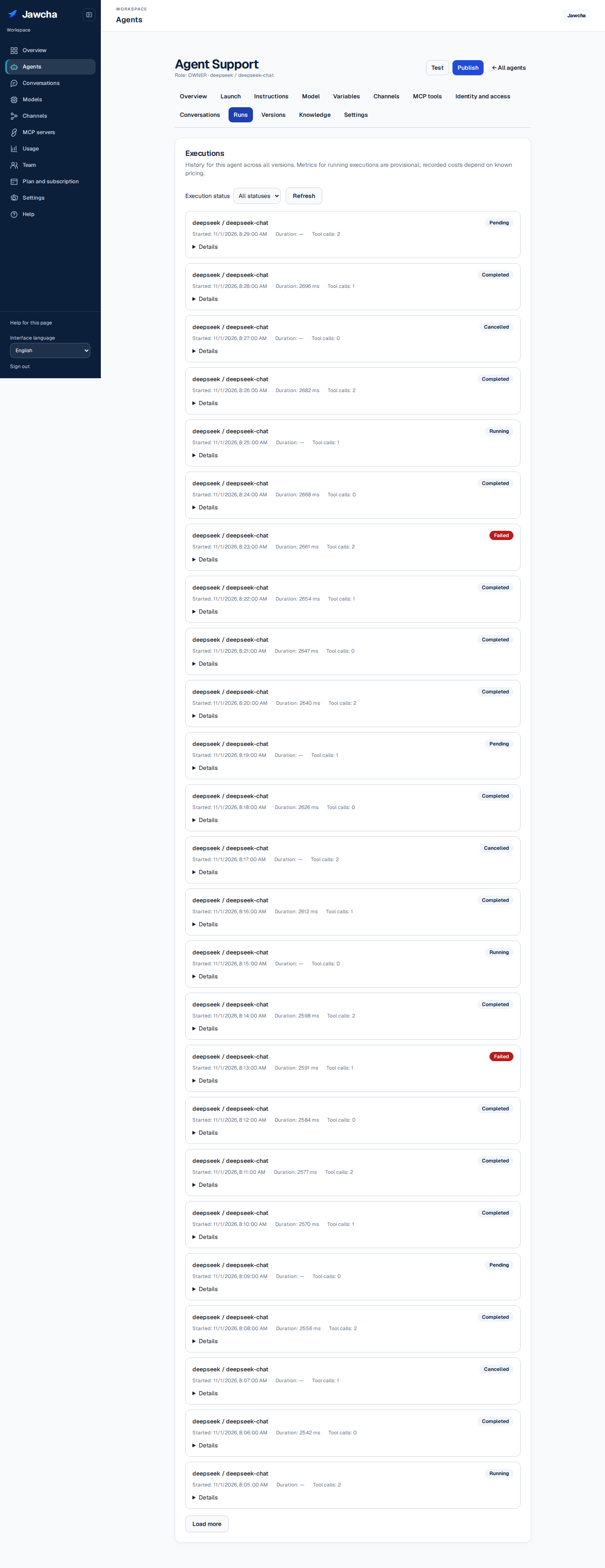
Console → Agents → your agent → Runs. Results include the historical versions of this agent.
Filter and browse
Choose a status. Load more adds up to 25 results; Refresh reloads the first page.
Read details
Expand a row to see the conversation identifier, input/output tokens, recorded cost and available end time.
Expected result
Status, model, start time, available duration and tool-call count help identify an execution. This screen creates neither scheduled tasks nor automations.
Errors and solutions
Empty history
Check the selected agent and workspace, then the filter. An agent with no execution displays an empty state.
Unable to load
Check your connection and workspace access, then use Refresh.
Find your way in the console
 Enlarge screenshot ↗
Real capture in a demonstration workspace. Fictional data.
Technical location
/agents/[id]Limits and dependencies
Running metrics are provisional. Costs depend on known prices and do not replace an invoice. No prompts, messages, tool arguments or tool results are displayed. Very large histories may load more slowly.